Sep 13, 2026
•
15 min read


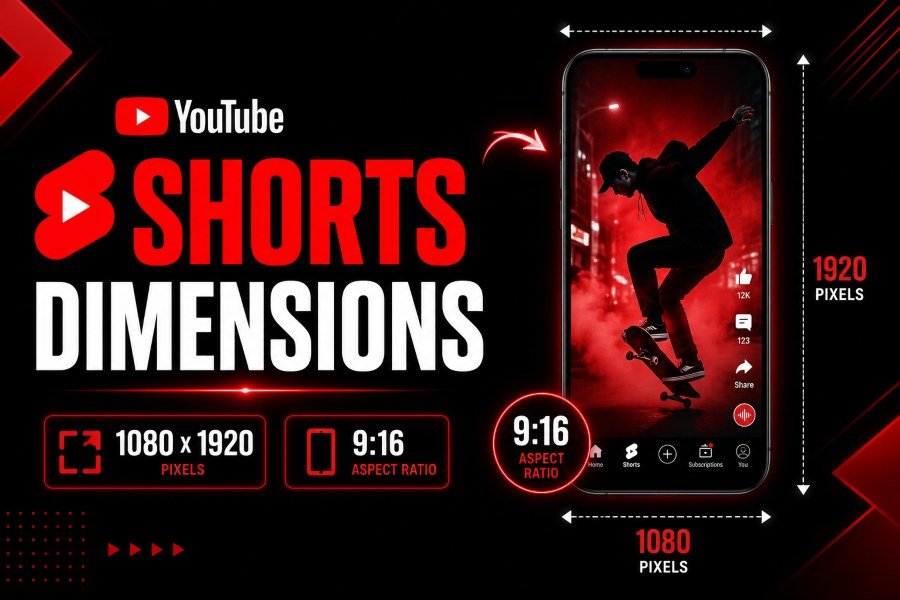
The exact YouTube Shorts dimensions for 2026 are 1080 × 1920 pixels at a 9:16 vertical aspect ratio. Export as an MP4 file using the H.264 video codec and AAC-LC audio codec at 48 kHz. The maximum length is 3 minutes (180 seconds) for uploads made on or after October 15, 2024. Keep your bitrate between 8–12 Mbps, match your source frame rate exactly, and place all critical text inside a centered safe zone of 900 × 1160 pixels so it does not get covered by YouTube's mobile buttons.
YouTube Shorts are built exclusively for mobile. That means vertical video, full-screen immersion, and precise technical specs.
The standard resolution is 1080 × 1920. This is a 9:16 aspect ratio—the same orientation as holding a smartphone upright.
You can also upload Shorts at 720 × 1280. YouTube will accept this, and the video will still qualify for the Shorts shelf. However, on modern high-resolution phones, 720p looks softer and less professional than 1080p.
Some creators export at 1440 × 2560 for extra sharpness. YouTube will process this, but the visible improvement on a typical 6-inch phone screen is marginal. The file size will be significantly larger, and upload times will increase. For nearly every use case, 1080 × 1920 is the practical sweet spot.
Square videos at 1080 × 1080 are accepted as Shorts. YouTube will categorize them correctly, but it will add black bars to the top and bottom of the frame. This reduces immersion, shrinks your visible content, and can hurt viewer retention because the eye is drawn to the center of the screen, not a boxed-in square.
The only reason to use square is if you are repurposing an existing asset from Instagram or another platform and do not have time to reframe it. For native Shorts content, 9:16 is the only ratio worth using.
Horizontal videos in 16:9 will not be categorized as Shorts, even if they are under three minutes. YouTube will treat them as standard long-form videos. If you want a horizontal clip to appear in the Shorts feed, you must reframe it to 9:16 by cropping, adding blurred sidebars, or using AI reframing tools.
The 9:16 aspect ratio is not a suggestion. It is a structural requirement for full Shorts eligibility.
YouTube's algorithm and the Shorts shelf display are optimized for vertical video. When a viewer opens the Shorts feed on a mobile device, a 9:16 video fills the entire screen. There are no black bars, no wasted space, and no visual distractions competing for attention.
Mobile devices account for the overwhelming majority of Shorts consumption. A vertical video that fills the screen captures attention more effectively than a letterboxed clip because the motion occupies the viewer's entire field of view.
The 1:1 square format is technically allowed, but it adds black bars that shrink your visible content area by roughly 44 percent. The bottom of the frame is also crowded with YouTube's native UI:
If your subject or text is positioned too low in a square video, it will be partially obscured. For this reason, square should only be used as a last resort for repurposed content. Every Short you film natively should be shot, edited, and exported at 9:16.
1080p at 1080 × 1920 is the standard resolution for YouTube Shorts. It delivers sharp, clean quality on mobile screens while keeping file sizes manageable and upload times short.
YouTube technically accepts 4K Shorts uploads. The platform will process, store, and serve the higher resolution file to devices that support it.
However, the practical reality is that most Shorts viewers will not notice a difference between 1080p and 4K on a smartphone screen. The displays are too small, the viewing distance is too far, and the compression pipeline reduces the visible gap even further.
4K files also increase upload times, storage costs, and processing load without a clear return in engagement or retention.
Best practice: If you are shooting on a 4K camera for flexibility in post-production, edit in 4K if your hardware allows, but export the final Short at 1080 × 1920. This gives you the best balance of visual quality and practical workflow efficiency.
Do not upscale a lower-resolution video to 1080 × 1920. If your source footage is 720 × 1280, export it at 720 × 1280. Upscaling forces YouTube to process artificial pixels, which produces a softer, noisier result than uploading the native resolution.
This is where most existing guides fall apart. Different sources give contradictory safe-zone measurements, which leaves creators guessing about where to place text, subtitles, and calls to action.
Here is what the research actually shows:
These numbers do not match. To resolve this conflict, the most conservative and defensible safe zone is 900 × 1160 pixels, centered on the 1080 × 1920 canvas. This is the only measurement that satisfies all three sources simultaneously. If you design for this zone, your text will be safe on every device, from the smallest iPhone SE to the largest Android tablets.
YouTube overlays the following elements on the lower portion of the screen:
The right side is also crowded with interaction buttons. If you place subtitles or a call to action too close to the bottom edge, they will be partially or fully covered by the native UI.
Placement guidelines:
If you follow this conservative rule, your Short will look clean on every device in the ecosystem.
The core export settings are identical across every editing platform. Use these as your baseline:
Create a new sequence using a custom preset. Set the frame size to 1080 horizontal by 1920 vertical. Set the pixel aspect ratio to Square Pixels (1.0). When exporting, choose H.264 as the format. Set the Target Bitrate to 10 Mbps and the Maximum Bitrate to 12 Mbps. Set the audio format to AAC with a sample rate of 48000 Hz and a bitrate between 128 and 320 kbps.
In the Deliver page, set the format to MP4 and the codec to H.264. Set the resolution to 1080 × 1920. Set the frame rate to "Same as Project" to avoid conversion artifacts. Set the quality restriction to approximately 10,000 kilobits per second. In the audio tab, choose AAC with a sample rate of 48 kHz.
Use the "Apple Devices 1080p" preset as a starting point, then open the Inspector and manually change the resolution to 1080 × 1920. Set the data rate to automatic or manually enter 10,000 kilobits per second. Ensure the audio is set to AAC at 48 kHz.
This is one of the most common questions from creators, and almost no guide explains the technical reason.
YouTube processes every upload in standard definition first. The high-definition version is generated afterward in a secondary processing pipeline. Depending on server load, video length, and overall platform traffic, the HD version can take anywhere from a few minutes to several hours to fully propagate.
If your video looks soft or pixelated immediately after publishing, this is normal. Wait thirty to sixty minutes and check again on a mobile device using the YouTube app. The HD version usually processes faster for Shorts than for long-form videos because the file duration is shorter and the processing queue prioritizes short-form content.
Always export at the native resolution of your source footage. If your camera recorded at 720 × 1280, upload it at 720 × 1280. Do not upscale it to 1080 × 1920 in your editor and then upload the upscaled version. YouTube's compression algorithm will process the artificial pixels created by the upscale, and the result will look softer than the original native-resolution file.
Both platforms use the same 9:16 aspect ratio and the same 1080 × 1920 resolution. The difference is not in the canvas size. It is in the safe zone.
TikTok's bottom user interface is larger and more aggressive than YouTube's. On TikTok, the bottom 20 percent of the screen is frequently covered by:
The right side is also crowded with the profile picture, follow button, like count, comment count, and share button.
YouTube Shorts also overlays the bottom and right sides, but the density is slightly different. The YouTube subscribe button and comment preview take up slightly less vertical space than TikTok's stacked icon column, but the right-side like, dislike, share, and remix buttons are more prominent than many creators expect.
If you are creating one video for both platforms, design for the TikTok safe zone because it is more restrictive. A layout that is safe on TikTok will automatically be safe on YouTube Shorts. The reverse is not always true.
Run every Short through this list before you publish. One mistake in any of these eight items can reduce your video's quality, visibility, or retention.
What is the correct YouTube Shorts size in 2026?
The correct size is 1080 pixels wide by 1920 pixels tall with a 9:16 vertical aspect ratio. This is the standard that fills the mobile screen and qualifies for the Shorts shelf.
Can YouTube Shorts be 3 minutes long?
Yes. YouTube expanded the maximum Shorts length from 60 seconds to 3 minutes on October 15, 2024. Any square or vertical video uploaded on or after that date that is 180 seconds or less can be categorized as a Short.
Can I upload 4K YouTube Shorts?
Yes, YouTube will accept 4K uploads. However, it is usually unnecessary. Most viewers watch Shorts on mobile devices where the visual difference between 1080p and 4K is not perceptible. The larger file size also increases upload times.
What happens if I upload a square video as a Short?
YouTube will categorize it as a Short, but it will add black bars to the top and bottom of the frame. This reduces the immersive full-screen effect and can make your content feel smaller and less engaging.
Why is my Short blurry right after uploading?
YouTube processes the standard definition version first. The high-definition version is generated in a secondary pipeline and can take 30 to 60 minutes to appear. Check again after waiting.
What frame rate should I use for YouTube Shorts?
Match your source frame rate exactly. Common options are 24, 25, 30, or 60 frames per second. If you shot at 30fps, export at 30fps. Do not convert 30fps footage to 60fps, because YouTube will not create real intermediate frames.
What is the best file size for YouTube Shorts?
YouTube's general upload limit is 256 GB. For a 1080p Short, a 3-minute video exported at 10 Mbps will typically be under 250 MB. You are unlikely to hit the platform limit with Shorts.
What audio settings should I use?
Use the AAC-LC audio codec at a 48 kHz sample rate. The audio bitrate should be between 128 and 384 kbps. This ensures compatibility with YouTube's processing pipeline and clean playback on mobile devices.
Is the 9:16 aspect ratio mandatory?
It is mandatory if you want your video to be recognized as a Short and promoted on the Shorts shelf. Square and vertical videos up to 3 minutes can qualify, but 9:16 is the only ratio that fills the screen without black bars.
Can I use copyrighted music in a 3-minute Short?
No. YouTube's copyright policy for Shorts limits copyrighted music to 60 seconds. If your Short is longer than 60 seconds and uses copyrighted music, it may be muted, blocked, or demonetized. For 3-minute Shorts, use royalty-free music from the YouTube Audio Library or hold full rights to the audio.
Getting the technical dimensions right is the price of admission for YouTube Shorts. The resolution, aspect ratio, and safe zone are non-negotiable if you want your content to look professional and perform well in the algorithm.
Use the exact specs in the opening paragraph of this guide as your reference point. Run every Short through the eight-point pre-upload checklist before you publish. Resolve the safe-zone confusion by sticking to the conservative 900 × 1160 pixel measurement. Understand that a blurry upload is usually just unfinished processing, not a mistake in your export settings.
Remember that perfect dimensions will not save a video with a weak opening hook or poor audio. Nail the technical specs first so they become invisible, then put your full creative energy into the content itself.
Author
Youtube Toolkit Team is a Digital Creator & YouTube Growth Specialist from the Netherlands
As Youtube Toolkit’s lead content writer, he transforms complex technical topics into engaging and helpful guides. His goal is to empower creators, coders, and marketers through clear and actionable content.
With 20+ years of experience in the digital ecosystem, Lucas specializes in bridging the gap between sophisticated technical architecture and practical end-user application. Whether it's deep-diving into YouTube SEO or exploring new SaaS integrations, his writing is designed to deliver immediate value.
Use our free tools to analyze, optimize, and maximize your YouTube channel's potential