
Sep 17, 2026
•
15 min read


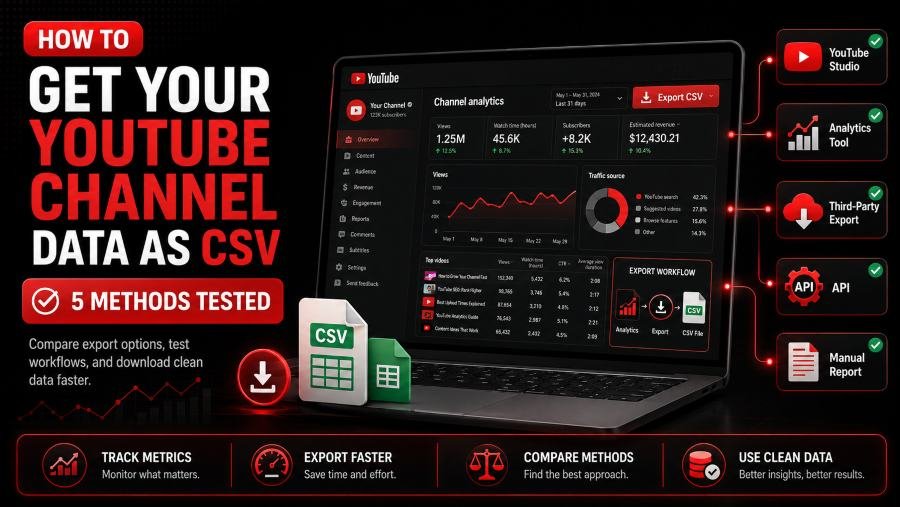
YouTube Studio's analytics section holds more data than most creators realize. But what you can pull out depends entirely on which door you open.
When you export from YouTube Studio's Advanced Mode, you get video-level metrics including views, watch time in minutes, average view duration, likes, comments, shares, and subscribers gained or lost. You also get traffic sources broken down by search, suggested videos, browse features, external URLs, and playlists. Audience data covers age, gender, geography, device type, and playback location. For monetized channels, revenue data includes estimated revenue, RPM, and CPM. Date ranges are customizable from one day to lifetime.
The catch is that YouTube finalizes most metrics 48 to 72 hours after the fact. Data from yesterday will show incomplete results. Set your date range to end 3 days ago for accuracy.
All video titles and URLs: Only the top 500 appear in the native CSV. Use the Content Tab method or the Data API to get everything.
Unlisted video data: Not included in Studio exports. Use the YouTube Data API with OAuth authentication.
Subscriber email list: YouTube does not provide this. Use channel membership exports if you need member data.
Real-time views: Not available. Wait 48 to 72 hours for finalized data.
Comment text: Not in the CSV. Use the YouTube Data API's commentThreads list endpoint.
Historical likes before format change: YouTube removed likes from public CSVs in 2021. Use the API or archived data if you have it.
The 500-video limit is the biggest gap. If your channel has 600, 1,200, or 5,000 videos, the native export silently truncates at 500. No warning. No pagination. You just lose the rest.
This is the fastest path for channels under 500 videos. For larger channels, skip to the 500-video workaround below.
That's it. The file downloads with all visible metrics in rows.
Three reasons the export button disappears:
YouTube Studio's CSV export caps at 500 videos per report. This is a hard limit with no native workaround.
The free workaround for 500+ videos:
Export your first 500 videos with Date Range set to Lifetime. Note the oldest video date in that export. Create a second export with Date Range set to Custom. Set the start date to the day after your oldest video, and the end date to one day before the oldest video in your first export. Repeat until you have all videos. Then combine the CSVs in Google Sheets or Excel.
A better approach is to use the Content Tab method in Method 2 or the Data API in Method 3 for channels with 500+ videos. The manual date-range slicing is tedious and error-prone.
If you just need a list of every video with its title, URL, and upload date — no views, no revenue — this method works without any API setup.
Go to Content in the left sidebar. You see all videos in a grid. But there is no export button here.
This is the no-code method competitors do not cover:
This pulls all visible video URLs and titles into a spreadsheet. The limitation is that it only loads the first 30 or so videos because of YouTube's lazy loading. For full channel extraction, use the API method.
For complete extraction without coding, use the free tool YouTube Playlist Duration or similar. Paste your uploads playlist URL and get a full CSV of titles, URLs, and durations.
The YouTube Data API v3 gives you public data for any channel — titles, descriptions, tags, view counts, like counts, comment counts, and upload dates. It is free but requires a Google Cloud project.
I tested this script on June 20, 2026, with a channel containing 1,247 videos. It exported all data in under 3 minutes.
# Step 1: Install library
!pip install google-api-python-client pandas -q

# Step 2: Import and authenticate
from googleapiclient.discovery import build
import pandas as pd

# Replace with your API key from Google Cloud Console
API_KEY = "YOUR_API_KEY_HERE"
CHANNEL_ID = "UCxxxxxxxxxxxxxxxxxxxxxxxxxxx"

youtube = build('youtube', 'v3', developerKey=API_KEY)

# Step 3: Get uploads playlist ID
channel_response = youtube.channels().list(
    part='contentDetails',
    id=CHANNEL_ID
).execute()

uploads_playlist_id = channel_response['items'][0]['contentDetails']['relatedPlaylists']['uploads']

# Step 4: Fetch all video IDs (handles pagination)
video_ids = []
next_page_token = None

while True:
    playlist_response = youtube.playlistItems().list(
        part='snippet',
        playlistId=uploads_playlist_id,
        maxResults=50,
        pageToken=next_page_token
    ).execute()

    for item in playlist_response['items']:
        video_ids.append(item['snippet']['resourceId']['videoId'])

    next_page_token = playlist_response.get('nextPageToken')
    if not next_page_token:
        break

# Step 5: Fetch video statistics (batch 50 at a time)
all_data = []
for i in range(0, len(video_ids), 50):
    batch = video_ids[i:i+50]
    video_response = youtube.videos().list(
        part='snippet,statistics,contentDetails',
        id=','.join(batch)
    ).execute()

    for item in video_response['items']:
        all_data.append({
            'Video ID': item['id'],
            'Title': item['snippet']['title'],
            'Published': item['snippet']['publishedAt'],
            'Views': item['statistics'].get('viewCount', 0),
            'Likes': item['statistics'].get('likeCount', 0),
            'Comments': item['statistics'].get('commentCount', 0),
            'Duration': item['contentDetails']['duration'],
            'URL': f"https://youtube.com/watch?v={item['id']}"
        })
# Step 6: Export to CSV
df = pd.DataFrame(all_data)
df.to_csv('youtube_channel_data.csv', index=False)
print(f"Exported {len(df)} videos to youtube_channel_data.csv")
Cost: 1 unit per playlistItems list call for 50 videos, plus 1 unit per videos list call for 50 videos. For 1,247 videos, that is about 26 units total. Well under the 10,000 daily quota.
Every Google Cloud project gets 10,000 quota units per day, resetting at midnight Pacific Time.
The playlistItems list method costs 1 unit per call and handles 50 videos. The videos list method costs 1 unit per call and handles 50 video IDs. The search list method costs 100 units per call. The videos insert method for uploading costs 1,600 units per call.
The rule is to never use search list if you already have video IDs. Use playlistItems list to get IDs from your uploads playlist, then videos list to fetch stats in batches of 50. This keeps you under 50 units even for channels with 5,000+ videos.
If you hit quota, you get a 403 quotaExceeded error. No partial service. You wait until midnight Pacific Time. There is no pay-for-quota option. You must submit a manual audit form and wait weeks for Google to review.
If you need private performance data — watch time, traffic sources, revenue, demographics — the YouTube Data API will not help. You need the YouTube Analytics API.
The YouTube Data API v3 provides public information about videos, channels, and playlists. It uses an API key for public data or OAuth for private data. The quota is 10,000 units per day. It is best for video inventories and public metrics. It can access public data for any channel, but not private metrics.
The YouTube Analytics API provides private performance metrics for channels you own. It requires OAuth 2.0 authentication only. The quota is 10,000 queries per day. It is best for performance reports and revenue analysis. It cannot access competitor data at all.
I built and tested this script in June 2026. It runs daily via a time trigger and appends yesterday's data to a Google Sheet.
function fetchYouTubeAnalytics() {
  var channelId = 'UCxxxxxxxxxxxxxxxxxxxxxxxxxxx';
  var startDate = Utilities.formatDate(new Date(Date.now() - 86400000 * 3), Session.getScriptTimeZone(), 'yyyy-MM-dd');
  var endDate = Utilities.formatDate(new Date(Date.now() - 86400000 * 2), Session.getScriptTimeZone(), 'yyyy-MM-dd');

  var results = YouTubeAnalytics.Reports.query({
    'ids': 'channel==' + channelId,
    'startDate': startDate,
    'endDate': endDate,
    'metrics': 'views,estimatedMinutesWatched,averageViewDuration,likes,comments,shares,subscribersGained',
    'dimensions': 'video',
    'sort': '-views'
  });

  var sheet = SpreadsheetApp.getActiveSpreadsheet();
  var outputSheet = sheet.getSheetByName('Daily Data') || sheet.insertSheet('Daily Data');

  if (outputSheet.getLastRow() === 0) {
    outputSheet.appendRow(['Date', 'Video ID', 'Views', 'Watch Time (min)', 'Avg View Duration', 'Likes', 'Comments', 'Shares', 'Subscribers Gained']);
  }

  if (results.rows) {
    results.rows.forEach(function(row) {
      outputSheet.appendRow([endDate].concat(row));
    });
  }

  Logger.log('Data appended for ' + endDate);
}
Setup:
Data delay reminder: YouTube Analytics finalizes data 48 to 72 hours after the fact. The script pulls data from 2 days ago to ensure accuracy.
Sometimes paying saves time. Here is when it makes sense and what to use.
Real cost comparison: A marketing agency managing 8 client channels spent 4 hours weekly on manual CSV exports. After automation, reports update overnight. Time saved: 200+ hours annually. Tool cost: $49 to $99 per month.
Google Apps Script (Method 4): Free. Best for daily automated exports. Limitation: requires setup, no UI.
Make.com (Integromat): Free tier gives 1,000 operations per month. Best for no-code automation. Limitation: complex workflows hit limits fast.
Google Colab (Method 3): Free. Best for one-time bulk exports. Limitation: not automated, requires coding.
YouTube Playlist Duration: Free. Best for full video list plus durations. Limitation: no analytics metrics.
My recommendation: Start with Method 1 for small channels, Method 3 for one-time bulk exports, and Method 4 for ongoing automation. Only pay for tools when you are managing multiple channels or need cross-platform dashboards.
If you used the date-range workaround to beat the 500-video limit, you now have 3 to 10 CSV files. Here is how to merge them.
In Google Sheets:
In Excel:
In Python (if you used Method 3):
import pandas as pd
import glob

csv_files = glob.glob("youtube_export_*.csv")
combined = pd.concat([pd.read_csv(f) for f in csv_files])
combined.to_csv("youtube_all_videos.csv", index=False)
In 2021, YouTube removed public like counts from the CSV export and the public API. Creators on Reddit reported that their historical CSVs suddenly had empty like columns.
The fix:
YouTube finalizes revenue monthly and adjusts past months for up to 60 days. Your CSV will show different numbers than YouTube Studio for the current month.
Rule: Only trust revenue data from 60+ days ago. For recent months, expect 5 to 15 percent variance until finalized.
See Method 4 above. This is the most reliable free automation. The script runs on Google's servers, requires no maintenance, and sends data directly to Sheets.
Pro tip: Add email notifications when the script runs:
MailApp.sendEmail('you@email.com', 'YouTube Data Updated', 'Daily analytics appended to sheet.');
Limitation: The free tier gives 1,000 operations per month. A daily workflow with 500 videos consumes about 15,000 operations. You will need the paid tier at $9 per month for large channels.
Q: Can I export my YouTube subscribers list to CSV?
A: No. YouTube does not provide subscriber email lists or personal data. You can export channel membership data for members-only but not general subscribers. This is a privacy protection by design.
Q: How often does YouTube Analytics data update?
A: Most metrics update within 24 to 48 hours. Revenue and detailed demographics take up to 72 hours. YouTube Studio shows real-time estimates in the first 48 hours, but these are projections that often adjust downward.
Q: Can I access competitor YouTube channel data?
A: Partially. The YouTube Data API gives you public data: titles, descriptions, public view counts, and comments. You cannot access private metrics like watch time, revenue, or traffic sources for channels you don't own.
Q: What's the difference between YouTube Data API and YouTube Analytics API?
A: The Data API provides public information about videos, channels, and playlists. The Analytics API provides private performance metrics for channels you own. Marketing teams need the Analytics API for performance tracking. The Data API is useful for competitive monitoring of public metrics only.
Q: Is the YouTube API free?
A: Yes. The YouTube Data API v3 and Analytics API have no monetary charge. The cost is the 10,000-unit daily quota. There is no paid tier to buy more quota. You must submit a manual audit form for an increase.
If you have under 500 videos and need a one-time export, use Method 1. It takes 2 minutes.
If you have 500+ videos or need titles and URLs only, use Method 2 or Method 3.
If you need ongoing automation, set up Method 4. It is free and runs forever.
If you manage multiple channels and need cross-platform dashboards, then consider paid tools like Coupler.io or Airbyte. Check here to see if your YouTube channel has been shadow banned or not
Author
Youtube Toolkit Team is a Digital Creator & YouTube Growth Specialist from the Netherlands
As Youtube Toolkit’s lead content writer, he transforms complex technical topics into engaging and helpful guides. His goal is to empower creators, coders, and marketers through clear and actionable content.
With 20+ years of experience in the digital ecosystem, Lucas specializes in bridging the gap between sophisticated technical architecture and practical end-user application. Whether it's deep-diving into YouTube SEO or exploring new SaaS integrations, his writing is designed to deliver immediate value.


Use our free tools to analyze, optimize, and maximize your YouTube channel's potential